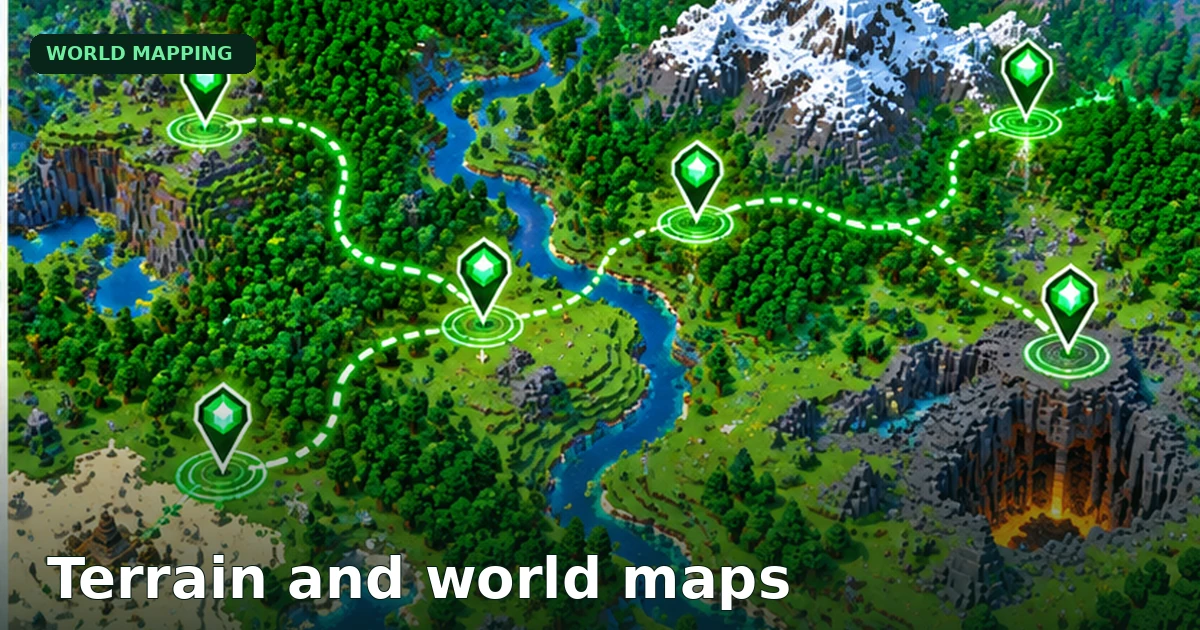
Xaero's Minimap shows what is around you right now. Xaero's World Map shows everywhere you have ever been. They are two separate mods by the same developer, xaero96, and they are designed to work together. This guide explains what Xaero's World Map does, how it connects to the minimap, and how to keep both running smoothly.
What is Xaero's World Map?
Xaero's World Map adds a self-writing, full-screen map to the Minecraft client. As you explore, it records the terrain and saves it, so you build up a complete picture of your world over time. It opens with M by default, you drag to move around and you zoom with the mouse wheel.
It works as a separate mod, but it is at its best with Xaero's Minimap installed. The reason the two are split is to keep the minimap as light as possible for players who only want the corner map.
How the two mods work together
Shared waypoints
Waypoints you create in the minimap with B appear on the world map, and you can create waypoints directly on the world map too. Either way, you manage one set of waypoints rather than two.
Shared map textures
When both mods are installed, Xaero's Minimap uses the map textures generated by the world map by default instead of generating its own. That avoids doing the same work twice and improves performance with both mods running.
Shared world detection
Both mods separate data per world and per server. On servers with several worlds, they can detect which one you are in, and a server-side install (or a companion plugin on Bukkit-based servers) makes that detection more reliable. Our plugin guide covers this.
| Xaero's Minimap | Xaero's World Map | |
|---|---|---|
| Main view | Live corner map | Full-screen saved map |
| Default key | Y settings, Z enlarge | M open map |
| Waypoints | Create, list, share, sets | Shows and creates them |
| Map textures | Reuses the world map's textures by default | Generates the saved map tiles |
| Required? | Works alone | Works alone, better together |
Installing Xaero's World Map with the minimap
- Confirm your exact Minecraft version and loader.
- Download Xaero's Minimap (see our download section) and Xaero's World Map for that same version and loader.
- Put both .jar files in your mods folder.
- Launch, join a world and press M to confirm the world map opens.
Keep both mods on releases from the same period. Updating one and not the other is a common source of problems after a Minecraft update.
Features worth knowing
- Works everywhere – singleplayer, multiplayer servers and Realms.
- Cave maps – the world map has its own cave mode settings for underground areas.
- Claims support – with Open Parties and Claims, claimed chunks and allies show on the map.
- Map selection – a menu on the world map screen lets you choose which saved map you are viewing, useful when a server changes address.
- Performance settings – options to reduce load on lower-end machines, although defaults are fine for most players.
Where map data is stored
Both mods save their data inside the game directory, in an xaero folder. The minimap's waypoints live under xaero/minimap, and the world map's saved tiles under xaero/world-map. Older versions used folders named XaeroWaypoints and XaeroWorldMap. Copy these folders before a big update or before moving to a new launcher instance, and you will keep your explored map and waypoints.
Tips for a faster, cleaner world map
- In singleplayer, optimising your world after a Minecraft update can make map generation much faster.
- If a server changed its address and your map looks empty, check the map selection menu before assuming data is lost.
- Do not edit map files while the game is running.
Frequently asked questions
Do I need the world map to use the minimap?
No. Xaero's Minimap works fully on its own. The world map is only needed for the full-screen view.
Can I use Xaero's World Map without the minimap?
Yes. It works as a separate mod, but you lose the shared waypoint system and the corner map, so most players install both.
For keys and shortcuts, read the full map keybind guide and the controls guide.
Move between local and regional planning
Use the minimap to make decisions in the next few seconds and the full-screen world map to plan the next few hours of exploration. During normal movement, the smaller interface is ideal for checking nearby water, cliff edges, or familiar markers. When deciding which biome to visit or how to connect two outposts, the larger map makes previously explored terrain easier to compare. This division of labour improves navigation without requiring constant interface changes. Before setting out, identify a series of manageable landmarks and use saved waypoints to turn an ambitious journey into several clear stages. The broader picture becomes especially useful in long-running worlds where building sites, farms, and transport routes extend far beyond the starting area.
Understand what the map actually knows
A digital map is a record of available information, not a promise that every region has been examined. Unexplored areas may remain blank or incomplete, and newly generated terrain can differ from your expectations after a significant game update. If an area looks unfamiliar, travel cautiously instead of assuming that the display contains a complete picture. Keep the world and its associated map data together when maintaining backups, and check which profile you are using before declaring information missing. Shared visual styles between the minimap and world map may create a seamless experience, but each interface still has its own controls and display options that are worth learning individually.
Keep a separate backup whenever you move a world between launchers or computers.
Conclusion
Xaero's Minimap and Xaero's World Map are most useful when treated as complementary perspectives on the same adventure. Use the local view for immediate awareness, the wider map for planning, and organised waypoints to connect the two. Keep profiles and map data backed up, and verify settings before assuming information has vanished. A well-maintained map grows alongside the world, turning exploration into a clearer and more rewarding experience.
Related guides
Xaero's Minimap Resource Pack Guide: Custom Entity Icons
Swap plain radar dots for recognisable icons, fix broken icons and build your own pack.
Read guide
Xaero's Minimap 1.21.11: Picking the Right File and Loader
A clear checklist for choosing the correct build for Minecraft 1.21.11 on any loader.
Read guide